
- K12 Unite School Tool – Online Rubrics
- K12 Unite School Tools
- K12 Unite School Tools – Class Planner
- K12 Unite School Tools – Reading Log Viewer
- K12 Unite School Tools – Student Reading Log
Grading just got easier! With School Tools’ new Rubrics feature, teachers can now create, save, and complete student assessments online—no more paper stacks or messy spreadsheets. Whether you’re evaluating assignments, projects, or classroom participation, our free tool helps you stay organized and consistent.
✅ Create & save custom rubrics in minutes
✅ Score student assessments online – fast & efficient!
✅ Access anytime, anywhere – log in with your Google account
Ready to streamline your grading? Try it for free today!
📌 https://schooltools.k12unite.com
Getting started with rubrics
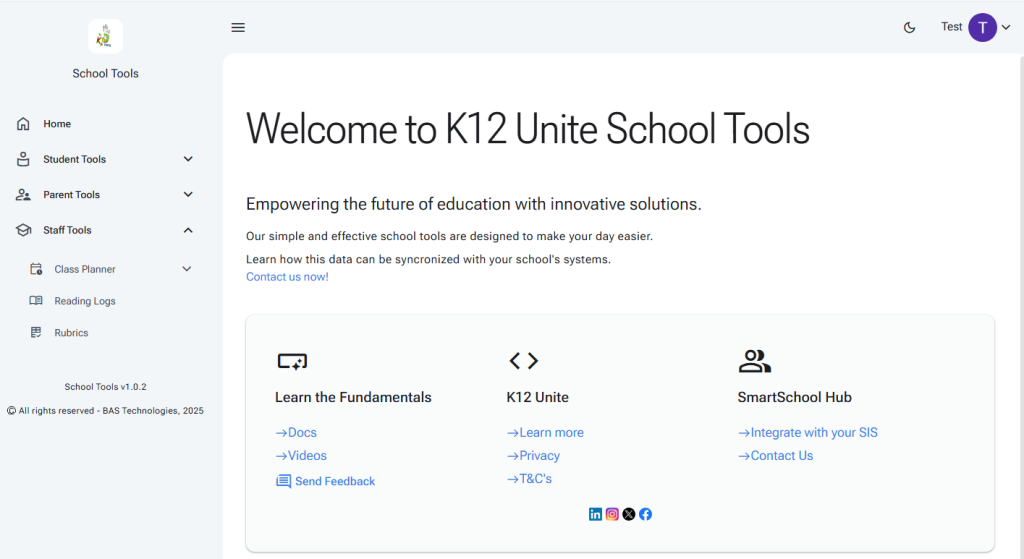
Navigate to the rubrics landing page from the side menu.
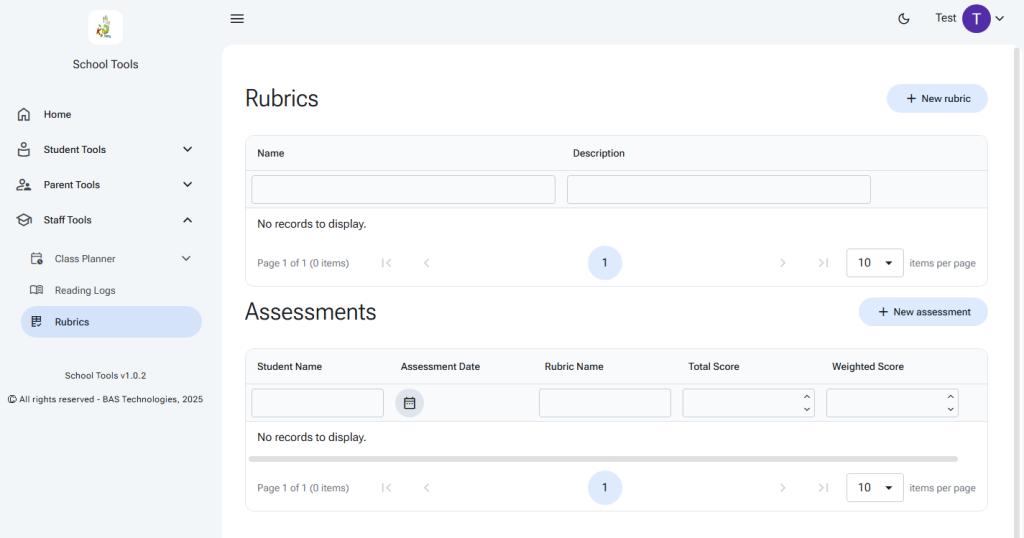
The landing page has two main tables – Rubrics and Assessments. This is where you can create new items with the add buttons or edit/view existing items by double left-clicking on the row in the table.
Start by creating your first rubric. Select the ‘New rubric’ button.
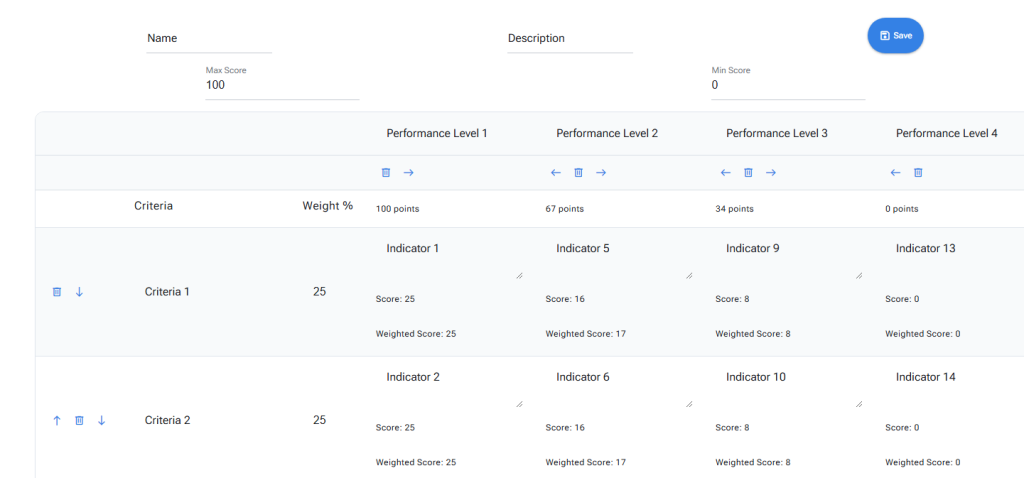
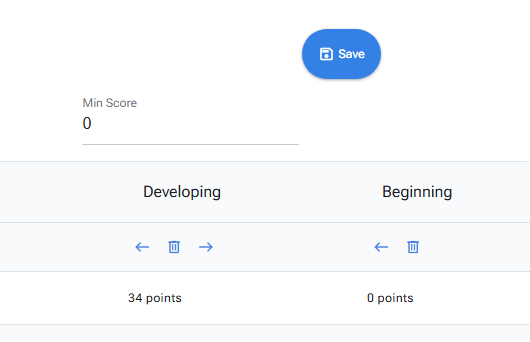
Give your rubric a name and a points-scoring system. The default is 100 points for top performance and zero for lowest. You can also adjust the weighting of each criterion. The default weighting will distribute points evenly.
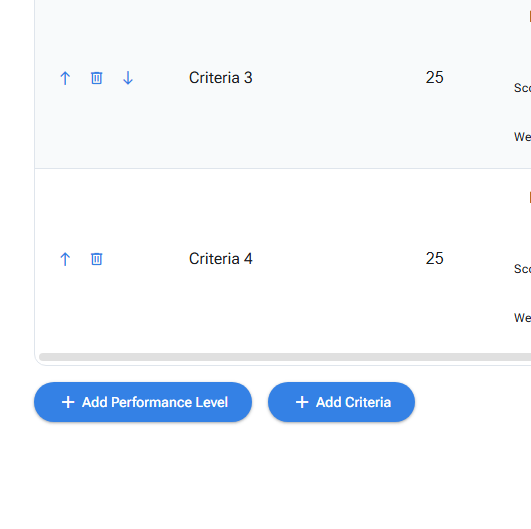
You can add more criteria and performance levels with the buttons at the bottom of the screen. Rows and columns can be re-ordered using the arrow buttons next to the header. The delete button removes the row or column.
Update your rubric’s row and column names, then add text to the indicators.
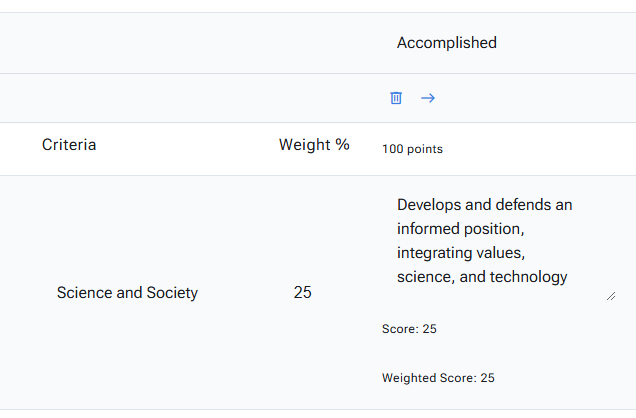
Select the ‘Save’ button when you are done. You can come back and edit at any time.
Student Assessment
Select the ‘New assessment’ button on the rubrics landing page.

A dummy rubric loads for the new assessment. Select the rubric you want to use from the dropdown at the top of the page.
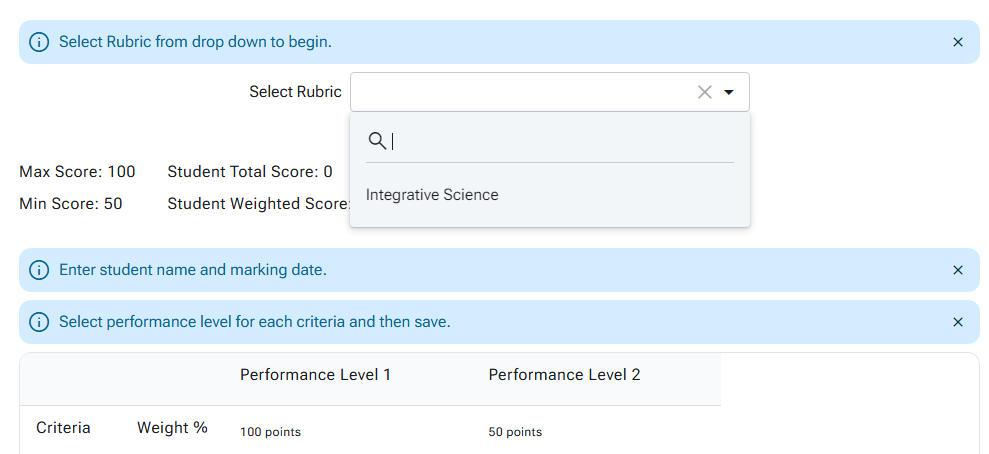
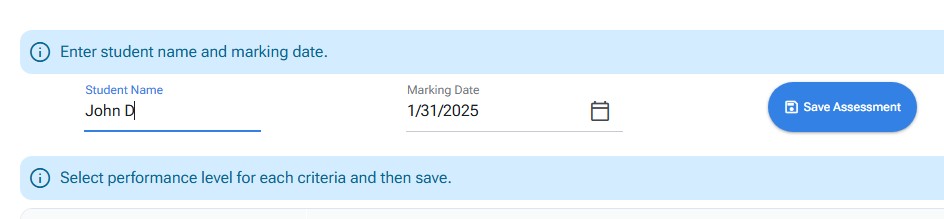
Enter the student’s name and marking date.
Clicking the indicators selects them for the assessment and updates the total scores.

Select ‘Save assessment’ when done.
A single click on the assessment row in the landing page table displays the assessment details.
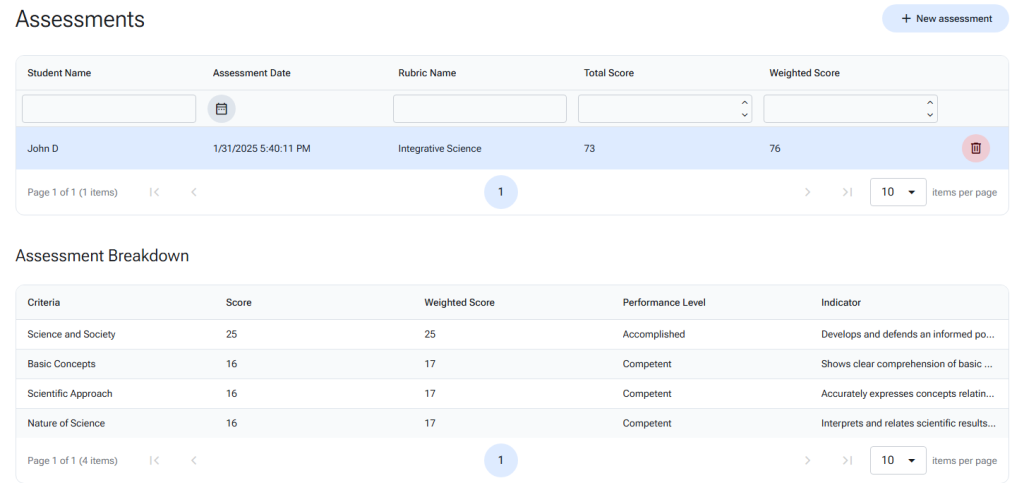
A double click on the assessment row allows you to go back and edit.
Learn more
Contact us to learn more and discover how we can integrate our solutions with your systems to save a lot of time and effort.